How to add a discount code to Shopify order emails
Create the code in your Shopify admin under Discounts first, then show it in your order emails. Shopify checks the code at checkout, so the email only has to show it and give a reason to use it.
1. Create the code in Shopify
- In your Shopify admin, go to Discounts and click Create discount.
- Choose Amount off orders, and under Method choose Discount code.
- Type a code, or click Generate code, and set the value as a percentage or a fixed amount.
- Under Maximum discount uses, check Limit to one per customer.
- Under Active dates, click Set end date if you want the offer to run out, then click Save.
2. Pick an offer people act on
- A thank-you for the next order works better than a discount on the one they just paid for
- An end date gives people a reason to use it soon
- A minimum purchase amount keeps small orders from costing you money
- One use per customer stops the code from being shared around
3. Put the code in your emails
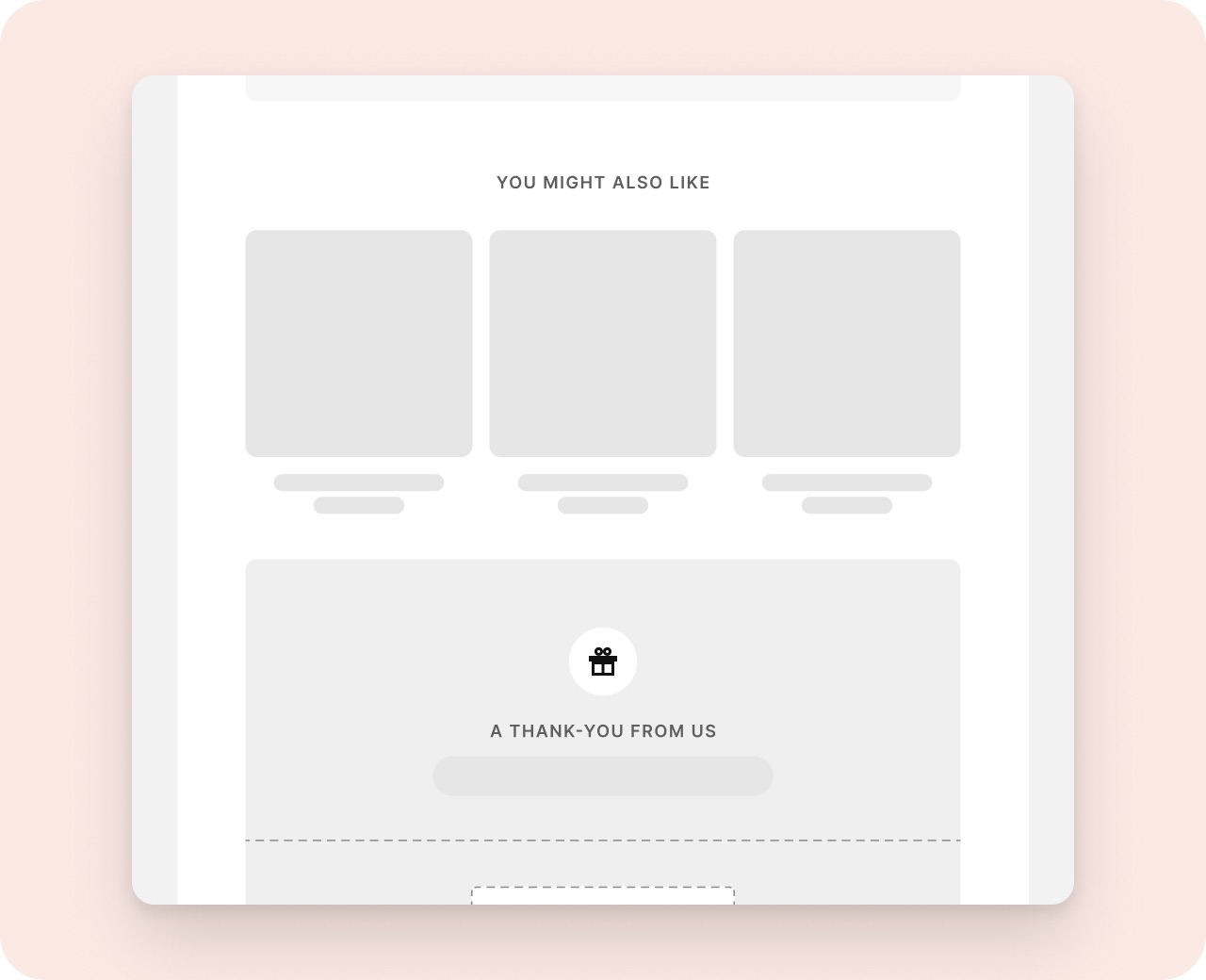
In Notifyr's Kaysun set, Order confirmation and Delivered already have an offer section called A thank-you from us. Replace XXXXXXX with your code and change the headline and terms to match your offer. Until you type your own code, Copy code leaves the offer out, so no customer sees a code that doesn't work.
You can also choose who sees the offer: everyone, first orders only, returning customers or subscribers. In the other sets, add a discount section from Add section.
4. See how many people used it
Shopify counts every order that uses the code. Your Discounts list shows how many times each code has been used, so you can tell whether the email brings people back.
Which emails to add it to
Put it where the customer is happiest with you: the order confirmation and the Delivered email. Use the same code in both, and keep it out of the refund and canceled emails.
Try it with Notifyr
Read the setup guide, or email support@notifyrmail.com with a question.